
External access to the UFZ network is possible via VPN (only with UFZ-computer and certificate) or via our VMware gateway with 2-factor authentication.
2FA
With an additional factor (token) and with your employee login, you can use various UFZ services from the outside. You can also use the token to connect to your virtual PC or to selected servers in the UFZ network via the gateway vmgw.ufz.de and access internal files and applications there.
Register a token
First, you need to register a token:https://privacyidea.intranet.ufz.de (intranet)
You can choose between a time-based one-time passcode (TOTP) with a smartphone app or an SMS-based token with your phone number.
As smartphone app, we recommend the privacyIDEA Authenticator:
privacyIDEA on the PlayStore (Android devices)
privacyIDEA on the App Store (Apple iOS devices)
But you can also use any other authenticator app, like e.g. Google Authenticator.
For an SMS-based token, you also have to set a PIN.
Manuals
[1]
Register and use a TOTP token
[2]
Register and use an SMS-based token
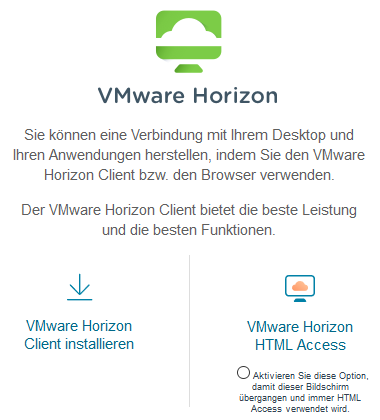 Tip: Download / install the VMware Horizon Client
VMWare Gateway - Steps to connect
Tip: Download / install the VMware Horizon Client
VMWare Gateway - Steps to connect
- Open https://vmgw.ufz.de in a web browser and enter your UFZ username and the passcode from the smartphone app. [1]
In case you use an SMS-based token, you habe to enter the PIN as passcode. Then, you will receive an SMS with your passcode, which you have to enter in the next window.
If you would like to use the VMware Horizon Client, you have to enter the server vmgw.ufz.de. Then you can log in using the passcode from the authenticator app or the PIN for the SMS-based token in the first dialog. - Enter your UFZ password.
- Choose your personal virtual desktop ("Mein PC") or the Windows Desktop Server as connection target for your work.
If you have any questions or trouble, please contact us via ticket system (also available externally) or by mail .